How to Reduce Image Size Below 100KB Without Making It Look Bad
A 100KB limit appears in many practical situations:
- Website uploads
- Application forms
- Government or exam portals
- Profile photos
- Email attachments
- Document submissions
- Product images
- Web performance budgets
The challenge is not simply making the file smaller.
The goal is to get below the size limit while keeping the image dimensions and visual quality appropriate for the task.
Quick Method
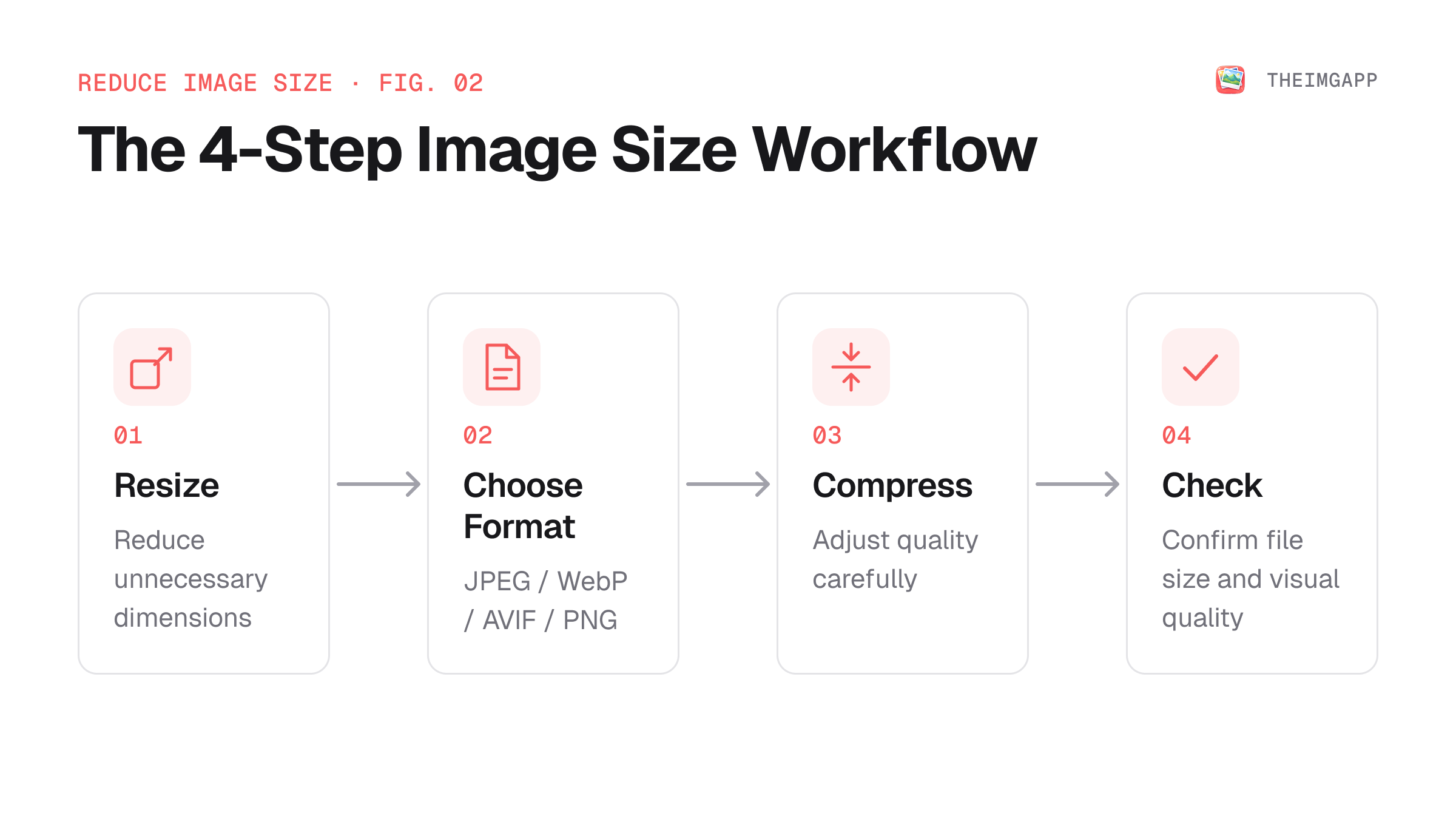
When an image is much larger than 100KB, use this order:
- Remove unnecessary dimensions by resizing.
- Choose an appropriate image format.
- Compress the image.
- Compare the result visually.
- Reduce quality further only when necessary.
A 4000×3000 image that is displayed at 800×600 is often unnecessarily large before compression even begins.
Why Is My Image So Large?
File size is affected by several factors:
- Pixel dimensions
- Image content
- Color complexity
- Compression method
- Quality setting
- Metadata
- File format
Two images with the same dimensions can have very different file sizes.
A detailed photograph usually contains much more visual information than a simple logo or flat-color illustration.
Step 1: Resize the Image
Resizing is often the fastest way to make a large image smaller.
For example:
4000 × 3000
      ↓
1600 × 1200
      ↓
1200 × 900
You should choose dimensions based on where the image will actually be displayed.
Do not resize blindly to an arbitrary number.
Use the theimgapp Image Resizer to reduce dimensions before compression.
Step 2: Choose the Right Format
For photographs, JPEG, WebP, and AVIF are common options.
For transparent graphics, PNG, WebP, and AVIF may be appropriate.
For vector artwork, SVG may be a better source format.
Use the theimgapp Format Converter when you need to change formats.
Step 3: Compress the Image
Use the theimgapp Image Compressor to test different compression levels.
Do not assume that the lowest quality setting is always the best choice.
Instead, progressively reduce the file size while checking:
- Text
- Faces
- Fine details
- Edges
- Gradients
- Transparency
Step 4: Compare the Result
Suppose your starting file is:
Original: 2.4 MB
You might produce:
Version A: 320 KB
Version B: 155 KB
Version C: 96 KB
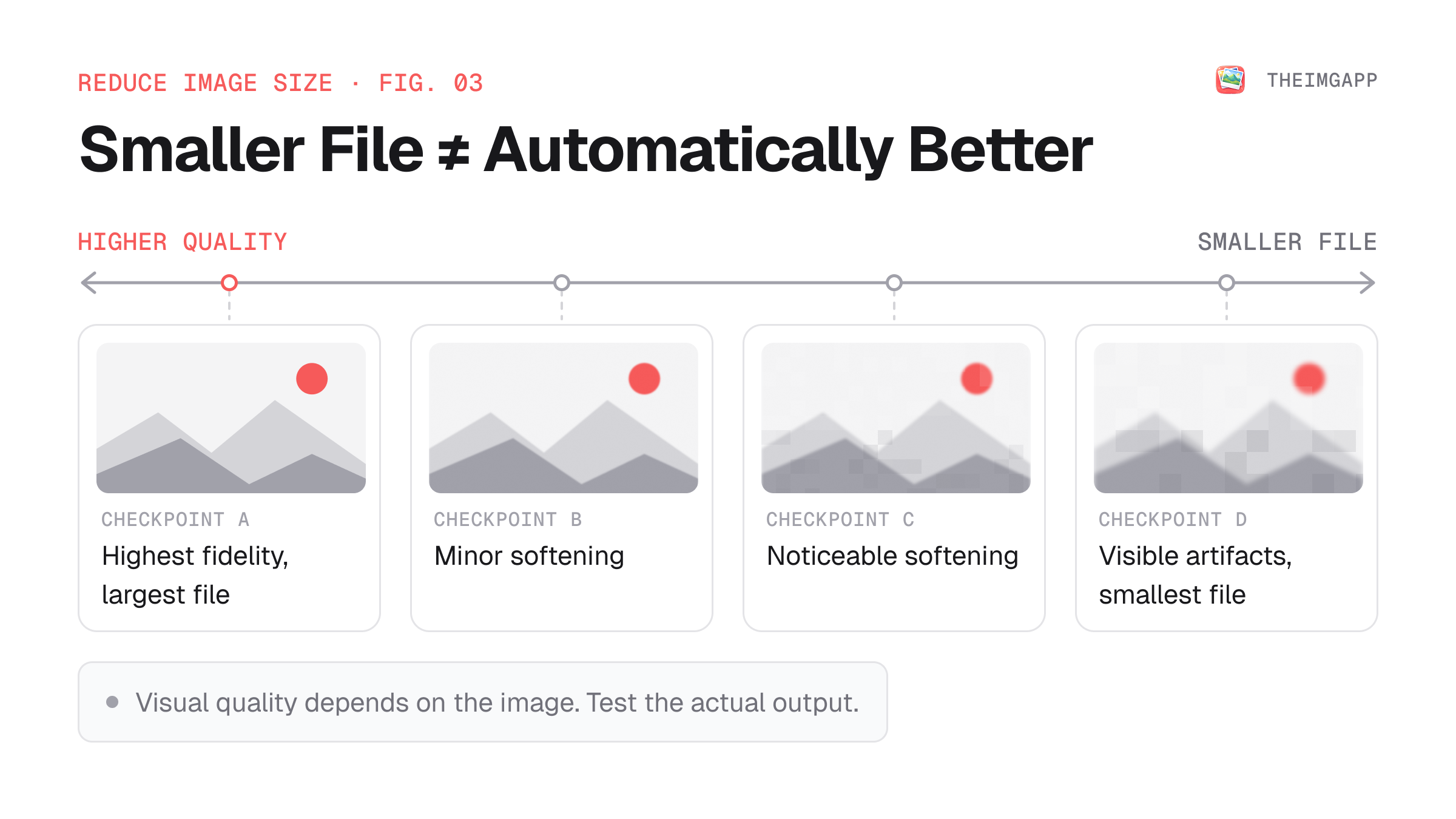
Version C meets the 100KB requirement, but that does not automatically make it the best version.
Compare the visual quality.
If Version B looks effectively identical for its intended use, the 155KB version may be preferable when the destination allows a larger file.
The correct target is therefore:
The smallest file that still meets the requirements of the destination.
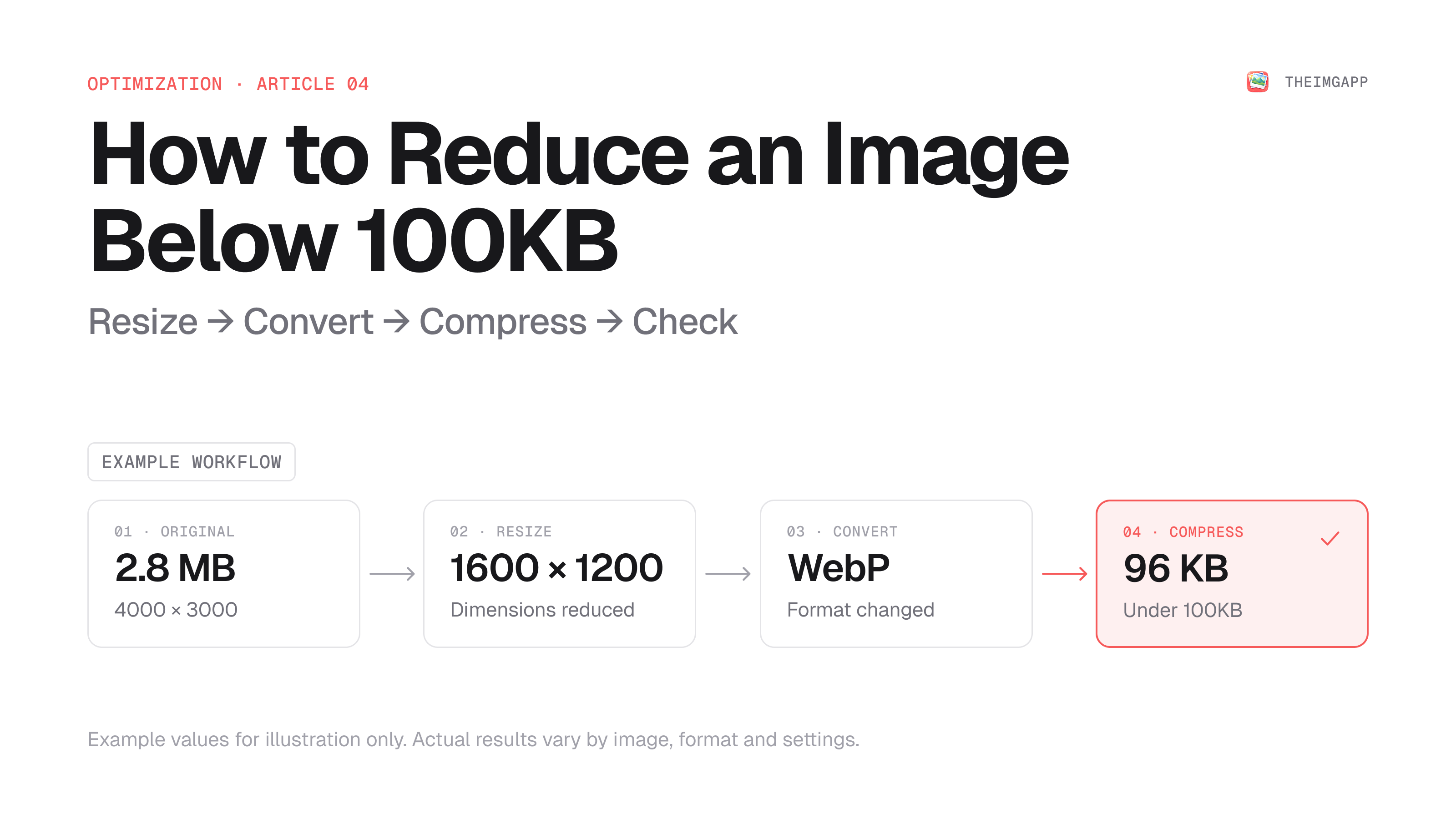
Example Workflow
A practical workflow for a photograph might look like:
Original
4000 × 3000
2.8 MB
   ↓
Resize
1600 × 1200
   ↓
Convert
WebP
   ↓
Compress
Quality adjusted
   ↓
Final
≤ 100 KB
The exact result depends on the source image and selected settings.
JPEG vs WebP vs AVIF for a 100KB Target
There is no format that guarantees a 100KB result for every image.
However, modern web formats can offer useful compression opportunities.
MDN notes that WebP generally provides better compression than JPEG and PNG, while AVIF can provide even stronger compression, depending on the image and settings. MDN image format guide.
For a strict 100KB limit, test the output instead of relying on a fixed quality percentage.
What About PNG?
PNG can be difficult to push below 100KB when the source is a complex photograph.
For graphics with limited colors, however, PNG can sometimes remain surprisingly compact.
For screenshots and transparent UI assets, test PNG against lossless WebP before deciding.
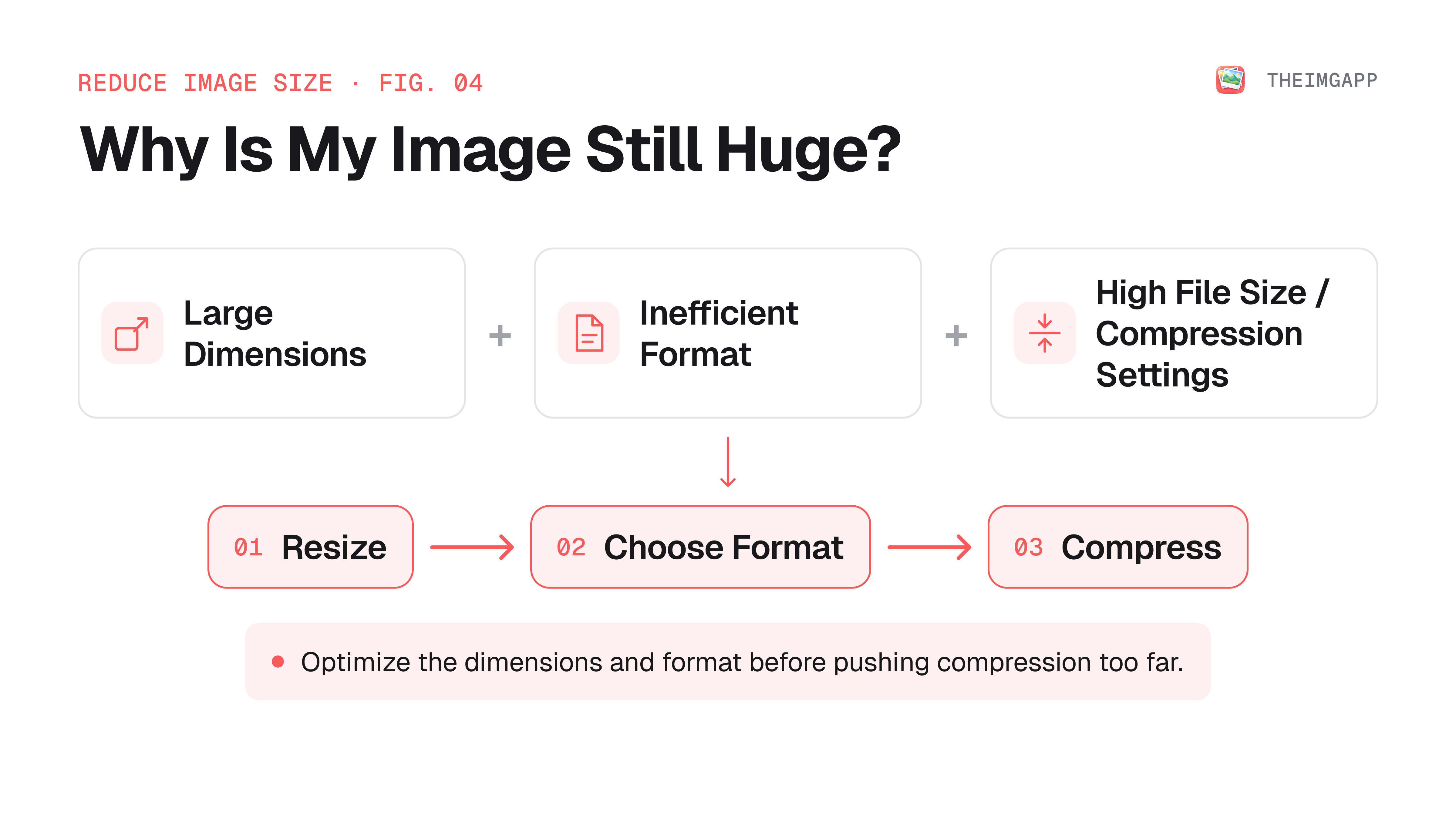
What If the Image Still Won't Go Below 100KB?
Try these steps in order:
1. Reduce dimensions
If the image is much larger than necessary, resize it.
2. Change format
Test WebP or AVIF for web use.
3. Adjust compression
Lower the quality gradually rather than jumping directly to an extreme setting.
4. Remove unnecessary metadata
Metadata is usually a small part of a normal image, but removing unnecessary information can still be useful.
5. Check whether 100KB is actually required
Do not optimize against an arbitrary number when the destination has a different requirement.
How to Reduce a JPG Below 100KB
- Open the theimgapp Image Compressor.
- Upload the JPG.
- Reduce dimensions if they are larger than necessary.
- Adjust compression quality.
- Download the result.
- Check the final file size.
- Inspect the image at normal viewing size.
If JPEG cannot meet the target without unacceptable artifacts, test WebP or AVIF where the destination supports them.
How to Reduce a PNG Below 100KB
Start by asking what kind of image it is.
For a screenshot or graphic:
- Reduce unnecessary dimensions.
- Use lossless optimization.
- Reduce the color palette when appropriate.
- Test lossless WebP if the destination supports it.
For a photograph saved as PNG, converting it to a photo-oriented format can produce a much larger improvement.
How to Reduce an Image Without Losing Visible Quality
"Without losing quality" is context-dependent.
A file can change technically while remaining visually indistinguishable at normal viewing size.
For practical optimization, compare the image at:
- Normal display size
- 100% zoom
- Text-heavy areas
- High-contrast edges
- Faces and fine details
Do not judge quality only from the percentage reduction.
100KB Image Checklist
Before submitting or publishing the file:
- Dimensions match the destination
- File size is below the limit
- Correct format
- No obvious artifacts
- Text remains readable
- Important details are preserved
- Transparency works if required
- Metadata is appropriate for the use case
FAQ
How can I make an image exactly 100KB?
The practical target is usually under 100KB rather than exactly 100KB. Compress until the file meets the limit while preserving acceptable visual quality.
Why is my PNG larger than my JPG?
PNG uses lossless compression and can be inefficient for photographs. JPEG is designed for lossy compression of photographic images.
Is WebP good for images under 100KB?
It can be. WebP often provides strong compression, but the final size depends on the image, dimensions, and settings.
Should I use AVIF to get below 100KB?
AVIF is worth testing when the destination supports it. Keep a fallback for compatibility-sensitive workflows.
Does resizing reduce image quality?
Resizing changes the pixel dimensions. When done correctly, the output can look excellent while using substantially less storage and bandwidth.